• About Us
  • Contact Us
Thursday, May 7, 2026
  • Login
CXOTECH
No Result
View All Result
  • NEWS
  • CXO TALKS
  • Executive Moves
  • ANALYSIS
  • STRATEGY
  • HOW TO
  • NEWS
  • CXO TALKS
  • Executive Moves
  • ANALYSIS
  • STRATEGY
  • HOW TO
No Result
View All Result
CXOTECH
No Result
View All Result

How to Format SD Card on Your Windows PC

Ali Ömer Yıldız by Ali Ömer Yıldız
January 30, 2024
in HOW TO
A A
How to Format SD Card on Your Windows PC

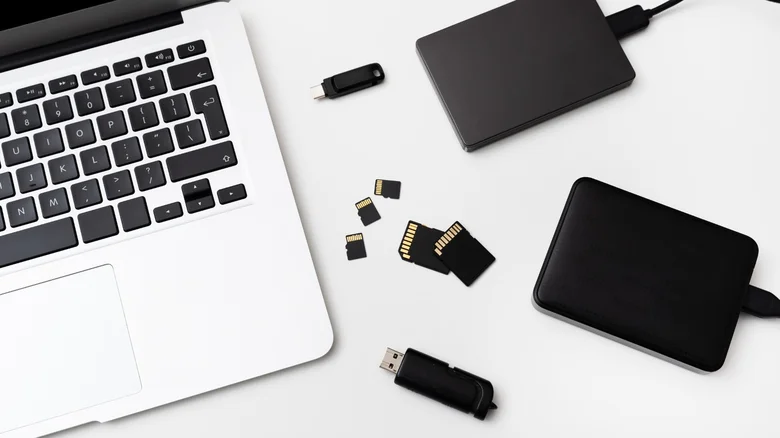
Despite most smartphones dropping the expandable storage option, we are now reaching storage densities of up to 1TB in a form factor as small as a microSD card. While the use of these memory cards in the mobile market has dropped significantly, most DSLR and mirrorless cameras still rely on the gold standard of SD cards (thanks to portability, affordability, ease of use and wide compatibility).

However, things can get messy very easily and sometimes you just want to delete everything and start again. While manually deleting all your files is an option, formatting a card in one click not only saves time, but also improves performance by making sure all performance-slowing files are destroyed. Whether you’re dealing with a large number of files or you want to reuse an old memory card, here’s how to easily format an SD card on your Windows laptop or desktop, format SD card in Windows.

SD card

1- Insert your SD card into your laptop’s card slot. Alternatively, if you are using a desktop computer or laptop without an SD card slot, use an external memory card reader or dongle.
2- Launch Windows Explorer and navigate to “This PC”.
3- In the list of drives you should find your SD card and how much storage space it has. If you are not sure which drive represents the card you want to format, remove and reinsert the card to see what changes in the list of available drives.
4- Right-click on your SD card drive and click “Format”.
5- A window should pop up displaying several options for formatting your card. Confirm the total capacity of your SD card.
6- Select the appropriate file system using the drop-down menu. The correct option should already be selected by default.
7- Under the Allocation unit size section, select “Default allocation size”.
8- Press “Start” to begin formatting and then “OK” to confirm the operation.

Your MicroSD/SD card should now be formatted, free of any data and ready to use.

  • LinkedIn

Source: https://www.cioupdate.com.tr/nasil-yapilir/windows-pcde-sd-kart-nasil-bicimlendirilir/

Post Views: 853
Tags: SD CardWindows
Previous Post

How Do You Know How Old Your Android Phone Is?

Next Post

Meet the New Infinix Smart 8 Pro: Packed with a 50 MP Camera and a Powerful 5,000 mAh Battery!

Next Post
Meet the New Infinix Smart 8 Pro: Packed with a 50 MP Camera and a Powerful 5,000 mAh Battery!

Meet the New Infinix Smart 8 Pro: Packed with a 50 MP Camera and a Powerful 5,000 mAh Battery!

Samsung Galaxy S24 Ultra Drop Test Conducted: Results Revealed!

Samsung Galaxy S24 Ultra Drop Test Conducted: Results Revealed!

LATEST NEWS

Nvidia and Amazon Web Services logos representing a major multi-year AI chip and infrastructure agreement
News

Nvidia and Amazon Sign Major AI Infrastructure Chip Deal

March 23, 2026

Nvidia has signed a multi-year agreement with Amazon Web Services (AWS) to supply AI chips and related infrastructure, reinforcing the...

Read moreDetails
Dana Walden announcing Disney’s new leadership structure for streaming, film, television, and games

Disney Sets New Leadership Structure for Expanded Entertainment Segment

March 18, 2026
Google Maps app interface showing immersive navigation and AI-powered trip planning features

Google Maps Gets Its Biggest Navigation Redesign in Over a Decade

March 16, 2026
Interior of an Amazon Robotics innovation hub, highlighting automation strategy and workforce restructuring

Amazon Cuts Jobs in Robotics Division Despite “Strategic Priority” Status

March 5, 2026
Claude AI app displayed in the Apple App Store on a smartphone, illustrating rising consumer adoption amid government scrutiny

Claude Hits No. 1 on Apple’s Top Free Apps List After U.S. Defense Pushback

March 2, 2026

Follow Us On LinkedIn

Categories

  • ANALYSIS
  • CIO Exclusive
  • Company Analysis
  • cxotalks
  • Executive Moves
  • HOW TO
  • News
  • STRATEGY

Tags

5G AI Amazon Android Apple Artificial intelligence chatbot ChatGPT China Chip CIO CXO Cyberattack Cybersecurity Digital Transformation Electric Car Elon Musk ElonMusk EV Facebook GITEX Google Huawei Instagram Intel iOS iPhone Japan META Microsoft NASA Nvidia OpenAI Sam Altman samsung Space SpaceX Tesla Threads TikTok TSMC Twitter Whatsapp Xiaomi YouTube
  • About Us
  • Contact Us

© 2023 CXO MEDYA

Welcome Back!

Login to your account below

Forgotten Password?

Retrieve your password

Please enter your username or email address to reset your password.

Log In
No Result
View All Result
  • About Us
  • B2B Lead Generation — Built for Enterprise Tech
  • Contact Us
  • Latest News
  • Privacy Policy
  • Tech Events & Conferences 2024

© 2023 CXO MEDYA